Profile Management
Profiles let users maintain separate alarm configurations for different situations -- home, work, events, Pokemon GO Community Days, and more. Each profile has its own alarms, areas, location, and geofence activations, so switching between setups is instant.
Cross-Profile Overview
The Profiles page provides a consolidated view of all profiles and their alarms in one place.
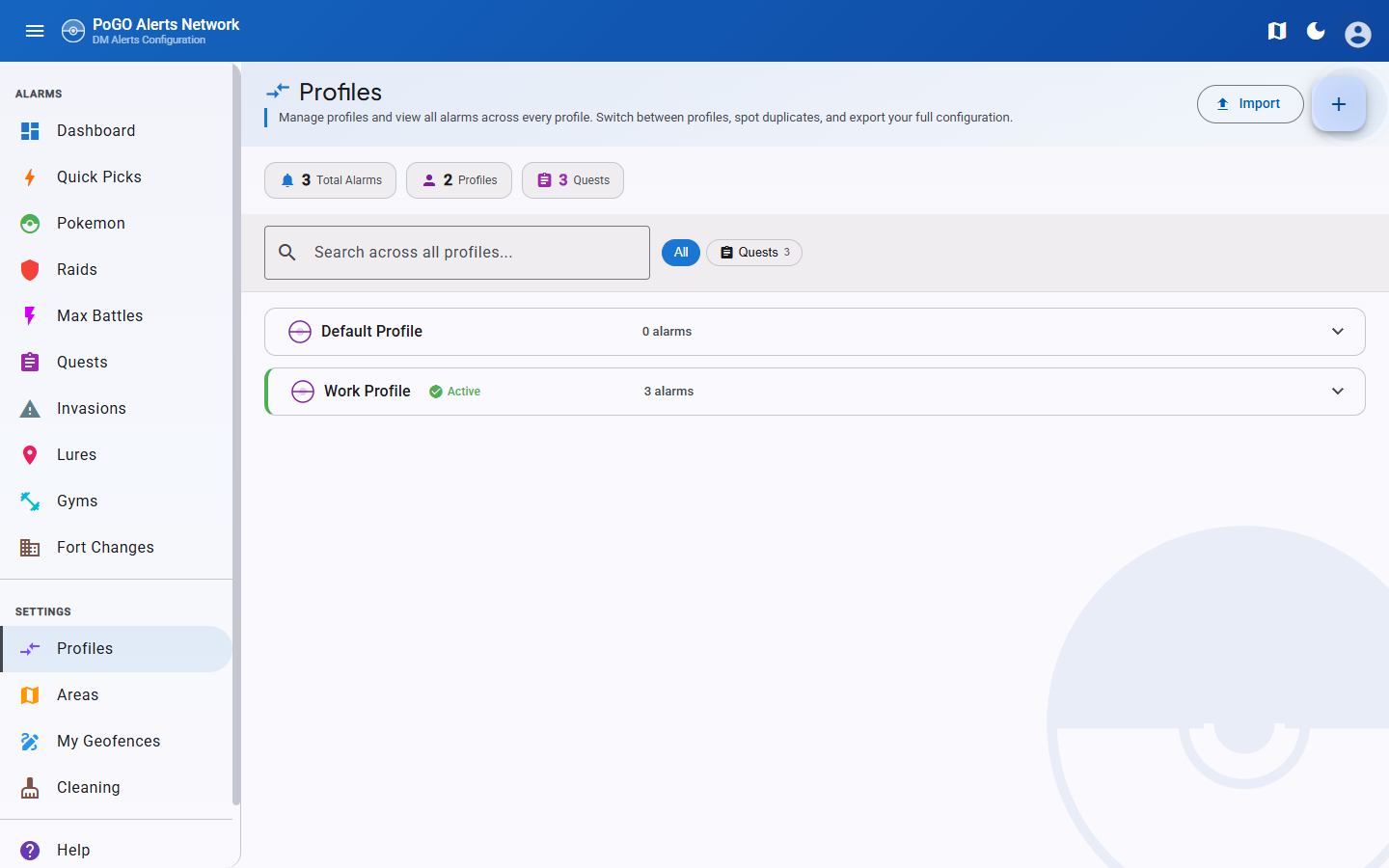
- Stats bar at the top shows total alarm counts per type (Pokemon, Raids, Quests, etc.) across all profiles
- Search bar filters alarms across all profiles by name, Pokemon, or other alarm attributes
- Type filter chips (Pokemon, Raids, Quests, Invasions, Lures, Nests, Gyms) narrow the view to specific alarm types
- Expandable panels for each profile display grouped alarms with game asset images for quick identification
- Duplicate detection -- alarms that exist on multiple profiles are highlighted with an orange border, making it easy to spot redundant filters
Tip
Use the search bar and type filters together to quickly find a specific alarm across all your profiles. For example, search for "Gible" with the Pokemon filter chip active to see which profiles are tracking it.
Creating & Switching Profiles
- Tap the + button to create a new profile with a unique name (up to 32 characters)
- Switch makes a profile the active one, indicated by a green badge
- Edit to rename an existing profile
- Delete to remove a profile (the currently active profile cannot be deleted)
Each profile maintains its own independent:
- Alarm filters (Pokemon, Raids, Quests, Invasions, Lures, Nests, Gyms, Fort Changes, Max Battles)
- Area selections
- Saved location
- Custom geofence activations
Warning
Switching profiles changes which alarms are active immediately. Make sure you are on the correct profile before modifying alarms or areas.
Profile Duplication
The copy icon on any profile creates an exact duplicate with all alarm filters.
- You are prompted for a new name (default: "Profile (Copy)")
- All alarm filters from the source profile are copied to the new profile
- Area selections, location and active hours are copied too
Duplication copies the whole profile, geography included
This changed in #503. addProfile upstream ignores area, latitude and longitude, so a copy used to
silently inherit whatever the active profile had — the right alarms over the wrong map, and a
location that also drives the active-hours timezone. The duplicate now carries the source profile's
geography, so it starts alerting immediately. Change the areas afterwards if that is not what you
wanted.
Profile Export & Import
Export
The download icon saves a JSON backup file containing all alarms from that profile. Internal IDs are stripped from the export to ensure portability across different PoracleWeb.NET installations.
Import
- Tap the upload button on the Profiles page
- Select a previously exported JSON backup file
- Choose a name for the new profile
- If the chosen name conflicts with an existing profile, a numeric suffix is added automatically
- All alarm filters from the backup are restored into the new profile
Tip
Export your profiles before making major changes. The backup file can be used to restore your configuration if something goes wrong, or to share alarm setups with other users.
Active Hours
Active hours let you schedule automatic profile switching based on time of day. Instead of manually switching between profiles, PoracleNG's built-in scheduler activates the right profile at the right time -- your "Work" profile turns on when you arrive at the office and your "Home" profile takes over when you leave.
How the scheduler works
Each active hours rule defines a specific activation point: a day of the week, an hour, and a minute. PoracleNG checks every few minutes and switches to the profile whose most recent activation time matches the current local time (within a 10-minute matching window).
- Day: Monday (1) through Sunday (7)
- Hour: 0-23 (24-hour format)
- Minute: 0-59
When multiple profiles have active hours configured, the scheduler treats them as a timeline. At 9:00 AM on Monday, if your "Work" profile has a rule for Monday at 9:00, PoracleNG activates it. At 6:00 PM, if your "Home" profile has a Monday 18:00 rule, it switches to that profile. The switch happens automatically with no user interaction.
Timezone is determined by profile coordinates
PoracleNG determines the local timezone from the profile's saved coordinates. If a profile has 0,0 coordinates (no location set), PoracleNG falls back to UTC, which will cause schedule switches to happen at the wrong times relative to your actual timezone. Always set a location on each profile that uses active hours.
Using the schedule editor
The schedule editor is accessed from the Profiles page by clicking the clock icon on any profile card.
Setting up a schedule
- Select days using the circular day buttons (M T W T F S S). Multiple days can be selected at once. Quick presets are available:
- Weekdays -- selects Monday through Friday
- Weekends -- selects Saturday and Sunday
- Every day -- selects all seven days
- Choose a time using the hour and minute dropdowns
- Click Add to create entries for all selected days at the chosen time
- Repeat to add additional activation times as needed
Managing rules
- The rules list displays all configured rules, grouped by time when multiple days share the same activation time (e.g., "Mon-Fri at 9:00 AM" instead of five separate entries)
- Each rule or group has a remove button to delete it
- Clear all removes every rule, making the profile manual-only again
- Save persists the schedule to PoracleNG immediately
- Cancel discards unsaved changes
Mini weekly preview
Below the rules list, a visual timeline shows when each activation time occurs during the week. This gives a quick at-a-glance view of your schedule coverage across all seven days.
Schedule display on profile cards
Each profile card on the Profiles page shows its schedule status:
- Amber schedule pills display the configured activation times, grouped by day pattern (e.g., "Mon-Fri 9:00 AM", "Sat-Sun 7:00 AM")
- "Manual only" label appears when no active hours are configured, meaning the profile is only activated by manually switching to it
Location warning
A red warning banner appears on a profile card when that profile has active hours configured but its coordinates are set to 0,0 (no location). This indicates the schedule may trigger at incorrect times because PoracleNG will use UTC instead of the user's local timezone.
To fix this, set the profile's pin from the Dashboard or the Areas & Places page while that profile is active.
Validation rules
| Rule | Constraint |
|---|---|
| Day | Must be 1-7 (Monday through Sunday) |
| Hour | Must be 0-23 |
| Minute | Must be 0-59 |
| Maximum entries | 28 per profile (4 time slots per day x 7 days) |
Note
The 28-entry limit allows up to 4 activation times per day across all 7 days. In practice, most users need far fewer -- typically 2-3 profiles with 1-2 activation times each.
Example schedule
A typical three-profile setup for a user who plays Pokemon GO around their daily routine:
Profile "Work" -- Weekdays at 9:00 AM
: Activates Monday through Friday at 9:00 AM. Configured with office-area geofences and Pokemon filters focused on nearby spawns during lunch breaks.
Profile "Home" -- Weekdays at 6:00 PM, Weekends at 7:00 AM
: Takes over on weekday evenings and weekend mornings. Uses home-area geofences with broader Pokemon and raid filters for local play.
Profile "Off" -- Every day at 11:00 PM
: Activates nightly to reduce notifications during sleep. Can be configured with no areas (silent) or with a minimal set of high-priority filters (e.g., only 100% IV Pokemon).
With this schedule, PoracleNG automatically cycles through the three profiles without any manual switching:
| Time | Mon | Tue | Wed | Thu | Fri | Sat | Sun |
|---|---|---|---|---|---|---|---|
| 7:00 AM | Home | Home | |||||
| 9:00 AM | Work | Work | Work | Work | Work | ||
| 6:00 PM | Home | Home | Home | Home | Home | ||
| 11:00 PM | Off | Off | Off | Off | Off | Off | Off |
Tip
You do not need to cover every hour of the day. A profile stays active until the next scheduled activation time. In the example above, the "Off" profile remains active from 11:00 PM until 9:00 AM on weekdays (or 7:00 AM on weekends) when the next profile takes over.
Weather Per Profile
The dashboard shows current weather conditions at your pin. Since each profile carries its own pin, weather information varies by profile.
For example, a "Home" profile with a residential location and a "Work" profile with an office location will each display the weather relevant to their respective area, helping you understand which weather-boosted Pokemon to expect at each location.