Alarm Management
PoracleWeb.NET provides a browser-based UI for managing Poracle notification filters. Users create alarms that tell Poracle which Pokemon, Raids, Quests, and other events to send as DM notifications.
All alarm CRUD operations are proxied through the PoracleNG REST API. PoracleNG handles field defaults, deduplication, and immediate state reload. See PoracleNG API Proxy for technical details.
Alarm types
| Type | Description |
|---|---|
| Pokemon | Filter by species, IV, CP, level, PVP rank, gender, size |
| Raids | Filter by raid boss, level, move, evolution, EX eligibility, specific gym, RSVP notification mode. See Raid level selector. |
| Eggs | Filter by egg level, EX eligibility, specific gym, RSVP notification mode. See Raid level selector. |
| Quests | Filter by reward — Pokemon encounter, item, mega energy, candy or stardust — with an optional minimum amount. See Quest alarm filters. |
| Invasions | Filter by grunt type and shadow Pokemon |
| Lures | Filter by lure type |
| Nests | Filter by nesting Pokemon species |
| Gyms | Filter by gym team changes, battle activity, specific gym |
| Fort Changes | Filter by fort type (pokestop/gym), change types (name, location, image, description, removal, new) |
| Max Battles | Filter by battle level (1-5 Dynamax, 7/8 Gigantamax), specific Pokemon, Gigantamax-only toggle |
Creating alarms
Each alarm type has a dedicated page accessible from the sidebar navigation. The creation flow:
- Click the + (add) button
- Select the Pokemon/raid/quest target using the selector dialog
- Configure filter options (IV range, CP range, level, etc.)
- On the Delivery tab, answer "Where should this alert reach you?" — see Where an alert reaches you
- Optionally select a template for notification formatting
- Save the alarm
Where an alert reaches you
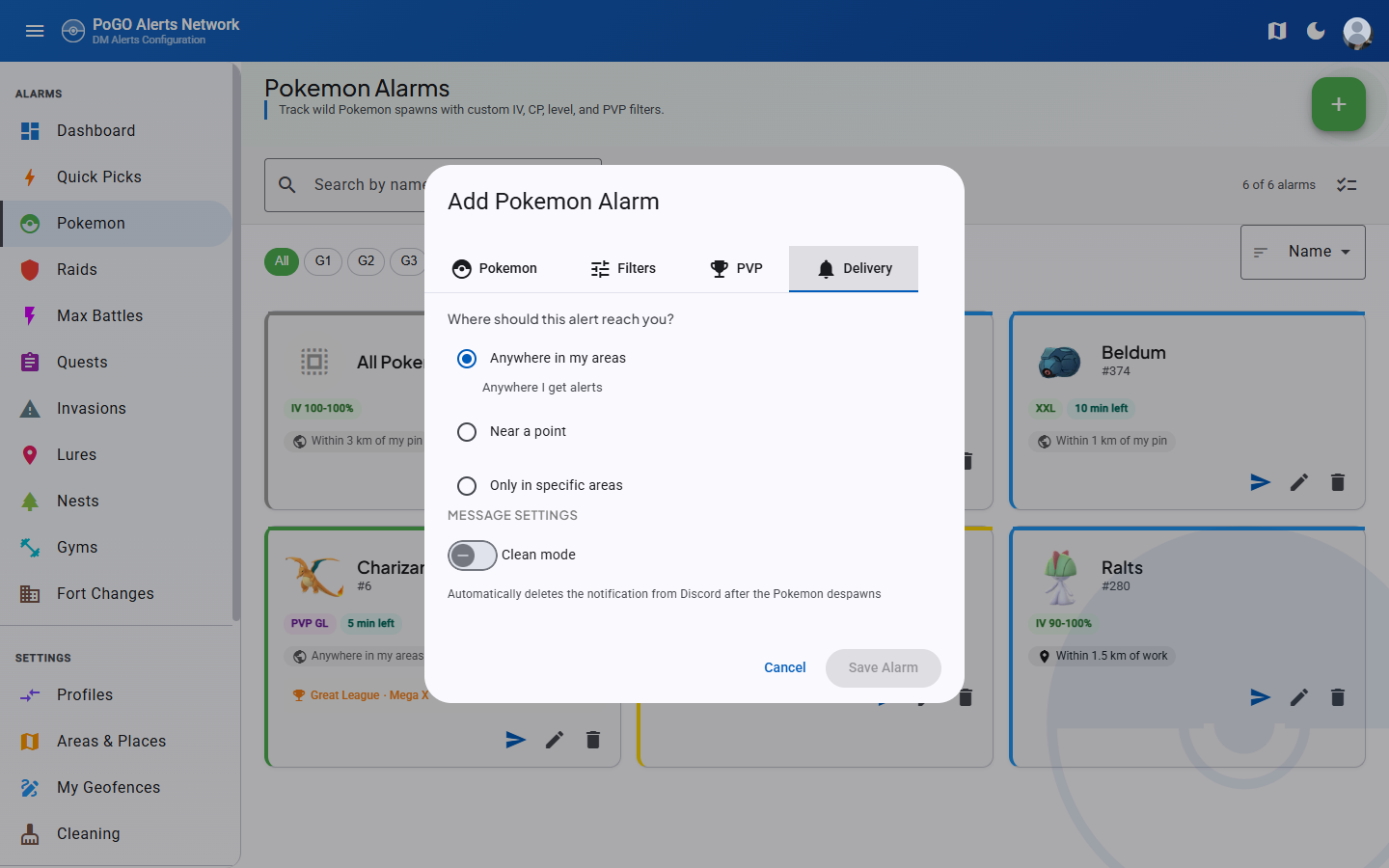
Every alarm answers the same question, and the Delivery tab of every add and edit dialog asks it outright: Where should this alert reach you? Three options, one radio group.
| Option | What it means |
|---|---|
| Anywhere in my areas | The alarm inherits whatever areas the active profile subscribes to. This is the default and the behaviour every alarm had before per-alarm scope existed. |
| Near a point | A radius around one fixed point. Measured from picks the point: your pin, or any saved place. Add a place in the same select opens the map picker without losing the alarm you are editing. |
| Only in specific areas | A list of areas for this alarm alone. It replaces the profile's area list rather than narrowing it, and geofences you drew yourself are offered alongside the admin areas. |
The three are exclusive rather than combinable, because PoracleNG refuses every mixture of them: a place with areas, areas with a radius, and a place without a radius are all rejected upstream. Modelling the choice as a radio group means those states can't be typed in the first place.
Under the hood the picker writes three fields. "Anywhere in my areas" clears both overrides and sends distance = 0. "Near a point" sends the radius in metres, plus override_location_label when a saved place is chosen and nothing when the pin is. "Only in specific areas" sends override_areas and forces distance to 0. Both overrides are always sent explicitly, including empty, because a null means "leave what's stored" on the write path. Without that you could set an override and never take it off.
If you choose "Near a point" without ever having set a pin, the picker says so and offers a Set your pin button in place, rather than saving an alarm that measures from 0,0.
Needs PoracleNG 5.1.0
override_location_label and override_areas arrive in PoracleNG 5.1.0. On an older server the columns don't exist, so the scope picker saves without complaint and changes nothing. PoracleWeb logs an error at startup and reports the detected version on Admin → Settings.
Your own geofences work here
PoracleWeb serves user-drawn geofences with userSelectable: false to keep them out of the bot's !area picker, and PoracleNG rejects those names when they arrive in override_areas. PoracleWeb sends only the names PoracleNG will accept and writes the rest into the alarm row directly, so a geofence you drew can scope one alarm whether or not your profile subscribes to it. See Custom geofences.
Saved places
A place is a named point ("home", "work", "the gym") that an alarm can measure from instead of your profile pin. They live on the Areas & Places page, below the pin and the area map. (/places still resolves; it redirects to /areas.)
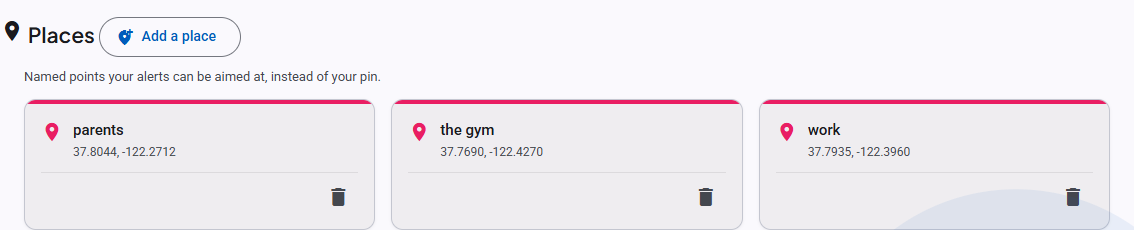
Add one with Add a place: drop the marker, then name it. Names are yours to choose and are what an alarm's override_location_label refers to. Places are user-scoped, not profile-scoped.
Deleting a place that alarms still point at is refused. DELETE /api/location/places/{label} answers 409 with a referencingRules list, and the UI names the alarms so you know what to repoint first.
The API is three endpoints on LocationController, all gated by disable_location:
| Endpoint | Purpose |
|---|---|
GET /api/location/places |
Every place plus the profile pin, as { default, named }. default is null when the user has never set a pin. |
POST /api/location/places |
Saves a place. A label PoracleNG refuses comes back as a 400 the dialog shows against the field. |
DELETE /api/location/places/{label} |
Deletes a place, or 409s with the alarms still using it. |
Changing scope from a card
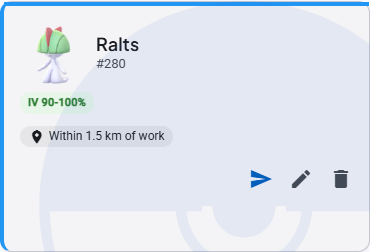
Most alarm cards carry a scope chip reading the alarm's answer back to you — "Anywhere I get alerts" when the profile has no areas selected, otherwise "Anywhere in my areas", "Within 2 km of Home", "Only in Terrigal, Erina". Clicking it opens the same picker in a small dialog, so one alarm's scope can be changed without opening its edit dialog. Pokemon, gym, invasion, lure, nest and fort-change cards have the chip; raid, quest and max-battle cards do not, so those are changed from their edit dialog.
Default delivery scope (Alert Defaults)
By default, every new alarm opens pre-set to Areas (geofence-based — the alarm sends distance = 0). If you usually track by radius, you can change that default so new alarms open on Distance with a radius you choose, instead of switching the location mode and re-typing a distance on every add.
Open the user menu (your avatar, top-right) and select Alert Defaults:
- Default mode — choose Areas or Distance for new alarms.
- Default distance — when Distance is the default, the radius (0.1–100 km) used to pre-fill new alarms. A live delivery preview shows what the choice covers.
- Measured from — also Distance-only: the pin, or a saved place new alarms should measure from. Switching the default back to Areas clears it, since a place without a radius is a scope PoracleNG refuses.
The preference is per-browser (stored in localStorage under poracle-default-alert-mode / poracle-default-alert-distance-km / poracle-default-alert-place, the same pattern as the theme and language settings) and is read by the AlertDefaultsService. It seeds the scope picker in every add-alarm dialog and in the Quick Pick apply dialog.
Applies to new alarms only
Alert Defaults only changes what the add/apply dialogs open with. Existing alarms are untouched, and you can still set a different scope on any individual alarm before saving it. Because the preference lives in the browser, it does not sync across devices.
Pokemon Availability
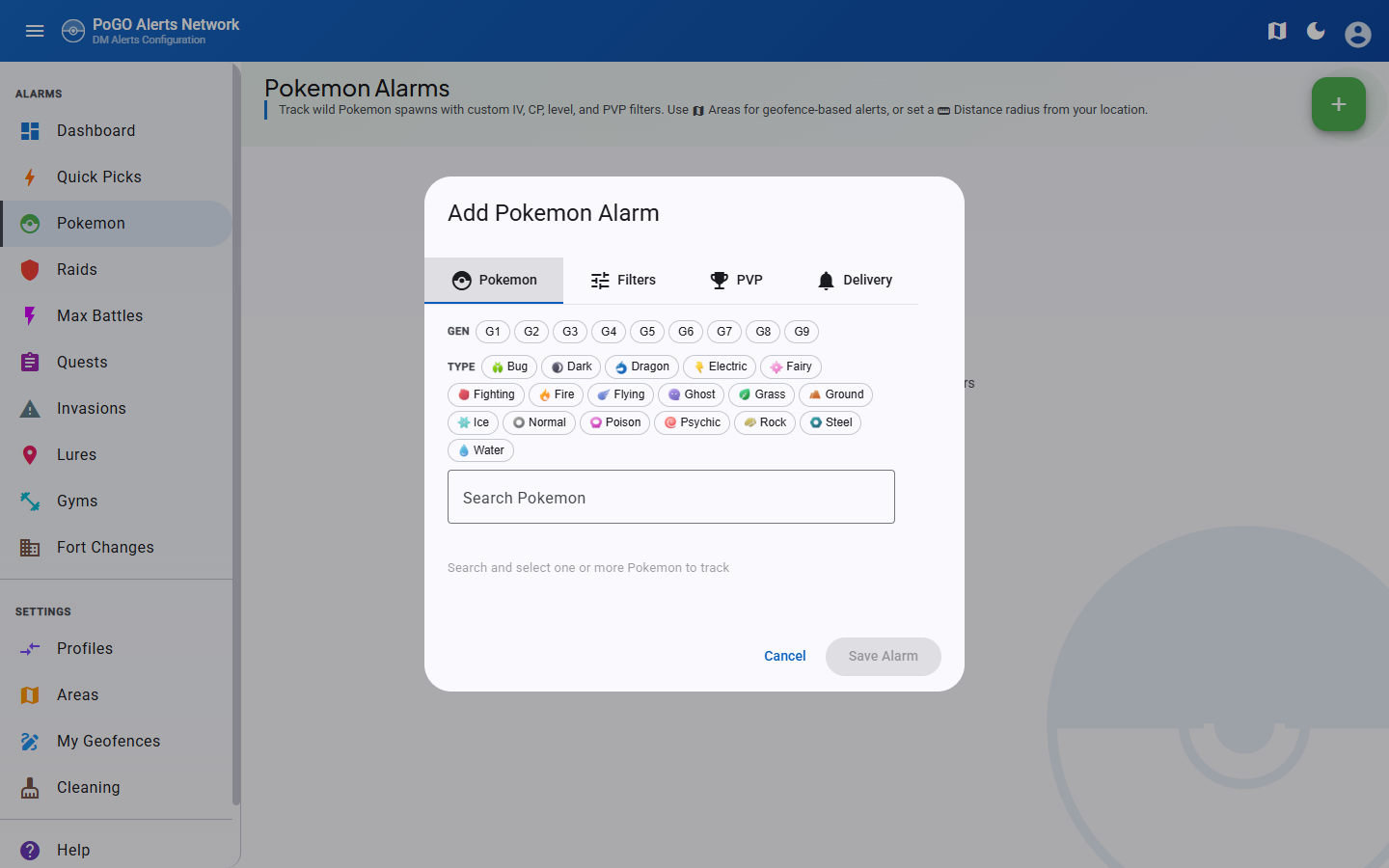
When a Golbat scanner is configured, the Pokemon selector shows which species are currently spawning in the wild. This helps users create alarms for Pokemon that are actually available to encounter.
How it works
- The backend fetches spawn data from Golbat's
GET /api/pokemon/availableendpoint - Results are cached for 5 minutes with a stale-data fallback if Golbat goes down
- The frontend fetches availability via
GET /api/pokemon-availabilityand auto-refreshes every 5 minutes in the background - The Pokemon selector renders availability indicators when data is available
What the user sees
- "Live > Spawning" filter toggle — Appears below the Gen and Type filter rows. Click to filter the Pokemon list to only currently spawning species.
- Green dot indicators — Small green dots appear next to available Pokemon in both the autocomplete dropdown and tile grid view. Unavailable Pokemon show a muted gray dot.
- Available-first sorting — When any filter (Gen, Type, or Spawning) is active, currently spawning Pokemon sort to the top.
- Species count — A "X species active" label shows the total number of spawning species.
Feature gating
The availability UI is automatically hidden when Golbat is not configured. No admin toggle is needed — the feature is infrastructure-driven.
Configuration — Set these environment variables in your .env to enable the feature:
GOLBAT_API_ADDRESS— URL of the Golbat API (e.g.,http://localhost:9001)GOLBAT_API_SECRET— Golbat API authentication secret
Alarm cards
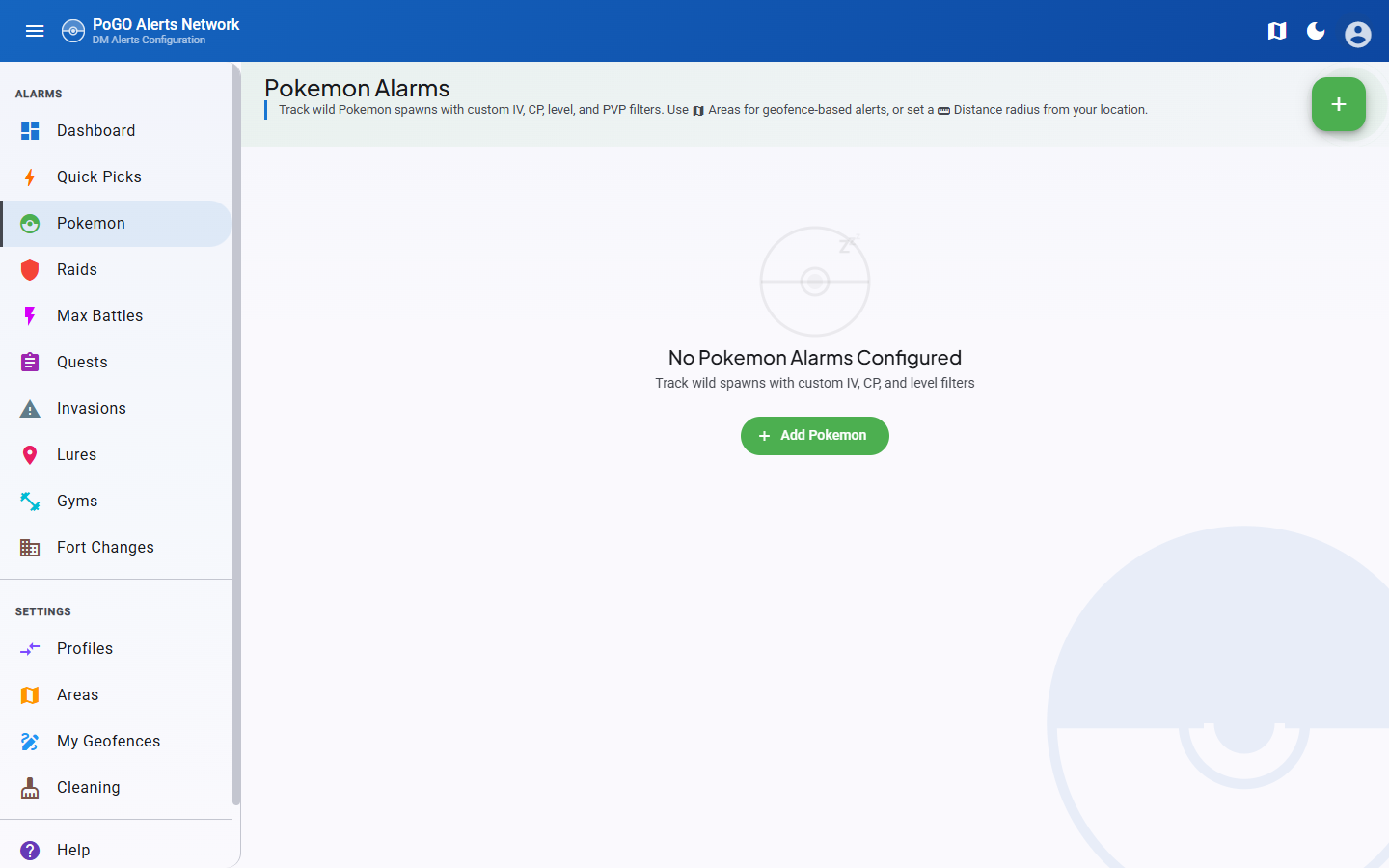
Alarms are displayed as a card grid. Each card shows:
- Pokemon sprite or raid/quest icon
- Filter pills — Quick-glance badges showing active filters (IV, CP, Level, PVP, Gender, Size, minimum time left)
- Scope chip — where the alert reaches you, in words: "Anywhere I get alerts", "Anywhere in my areas", "Within 2 km of Home", "Only in Terrigal, Erina". Click it to change the scope from the card
- Template name
- Targeted gym name — Gym, Raid, and Egg alarm cards display the name of the targeted gym when a specific gym is selected (via the gym picker)
- Edit/delete actions
Bulk operations
Each alarm list page has a select mode toggle (checklist icon in the toolbar):
- Toggle select mode on
- Check individual alarms or use Select All
- The bulk toolbar appears with available actions:
- Update Distance — Set a new distance for all selected alarms
- Delete — Remove all selected alarms
Bulk distance uses the PoracleNG API
Bulk distance updates fetch all matching alarms from PoracleNG, modify the distance field, and POST them back. This ensures PoracleNG validates the data and triggers a state reload.
Profiles
Users can maintain multiple alarm profiles. Only one profile is active at a time.
- The Profiles page shows all alarms across all profiles in a unified overview
- Switch profiles, edit, duplicate, delete, export, and import — all from one page
- Each alarm is associated with a
profile_no - The active profile is tracked by
humans.current_profile_no
Cross-Profile Overview
The Profiles page uses PoracleNG's GET /api/tracking/allProfiles/{id}?includeDescriptions=true endpoint to fetch all alarms across all profiles in a single call. Alarms are grouped by profile (expandable accordion panels) and by type within each profile.
Duplicating a profile
The Duplicate button on each profile panel creates a new profile with all alarms copied from the source profile:
- Click the Duplicate button on any profile panel
- Enter a name for the new profile (pre-filled as
"<source name> (Copy)") - Click Duplicate
The new profile inherits the source profile's areas, location, and all alarm filters. If the alarm copy step fails, the empty profile is automatically rolled back (deleted) so the user never ends up with a shell profile.
Duplicate vs. Create
Use Duplicate when you want to start with an existing set of alarms and tweak them. Use Create when you want a blank profile.
Profile Backup & Restore
- Export: Per-profile JSON backup containing all alarm filters, stripped of internal fields (
uid,id,profile_no). File format:{ version: 1, exportedAt, profileName, alarms: { pokemon: [...], raid: [...], ... } } - Import: Upload a backup file to create a new profile with all alarms restored. Profile names are auto-deduplicated if a matching name already exists.
Profile Name Uniqueness
Profile names must be unique per user. Validated client-side in all entry points (add, edit, duplicate, import dialogs). Server-side auto-deduplication appends a numeric suffix as a fallback.
Pokemon alarm filters
Size filter
The size filter uses special sentinel values:
size = -1— No filter (ALL sizes). This is the default.size = 1throughsize = 5— Specific sizes: 1 = XXS, 2 = XS, 3 = Normal, 4 = XL, 5 = XXL.max_size = 5— Default upper bound.
When a user selects a specific size, both size and max_size are set to the same value, creating an exact match. For example, selecting XXL sets size = 5, max_size = 5.
Level range
The default maximum level is 55 (not 40 or 50), matching Poracle's support for shadow/purified/best-buddy boosted levels.
Minimum time left
Under More Filters, Minimum Time Left skips spawns that will despawn before you could reach them. The field is a select rather than a free number, offering Any, 1, 2, 5, 10, 15 and 20 minutes. PoracleNG stores seconds (min_time), and a free field invited two silent failures: typing 5 meaning minutes asks for five seconds, and a value longer than a spawn lives mutes the alarm with no error. A value set from the bot that isn't one of the presets is kept and offered in the list rather than being overwritten on the next save.
When set, the card shows a "5 min left" pill alongside the IV and CP pills.
PVP mega evolution
On the PVP tab, once a league is selected, Mega evolution chooses which form the rank applies to: Base, Mega, Mega X or Mega Y (pvp_ranking_evolution 0–3). Megas are ranked separately from their base forms, so a Mega rule will not match a base-form spawn. Pick Base unless you specifically want mega rankings.
The chosen form appears as a suffix on the card's PVP badge ("Great League · Mega X").
Needs PoracleNG 5.1.0
pvp_ranking_evolution arrives in PoracleNG 5.1.0. Below that the column doesn't exist and the toggle group saves without effect.
Raid level selector
The raid and egg pickers share the <app-level-selector> chip component. The vocabulary follows the WatWowMap masterfile — the same source PoracleNG uses for in-DM notification text — so the names you see in the picker match what users receive in their alerts.
Raid picker. Multi-select. Primary chip row shows the seven most common types: 1 Star, 2 Star, 3 Star, 4 Star, Legendary (level 5), Mega (level 6), Mega Legendary (level 7). A Any chip selects the wildcard sentinel (level 9000) that matches every raid level. A More raid types… overflow menu surfaces the other 12 canonical types: Ultra Beast (8), Elite (9), Primal (10), 1–5 Shadow (11–15), 4–5 Super Mega (16–17), Coordinated 1–2 (18–19).
Egg picker. Multi-select. Only the five Star tiers (1–5) are surfaced — Pokémon GO has no Mega/Shadow/Primal eggs.
The "By Boss" tab has no level picker. PoracleNG forces level to the wildcard 9000 for any raid
alarm carrying a specific pokemon_id (trackingRaid.go), so a level chosen alongside a boss could never
survive the request. The tab used to show a picker whose value was always discarded; it was removed in
v2.14.0. Track a boss to be alerted at whatever level it appears.
+ Add. Both pickers expose an inline numeric input for any positive integer not in the canonical list. Useful for forward compatibility — if Niantic introduces a new raid type (raid_20) before PoracleWeb.NET ships an update, you can already alarm on it. Typed values are ephemeral to the dialog session: close the dialog (or refresh the page) and the chip is gone. Saved alarms at custom levels re-seed the chip when you open the edit dialog.
The canonical list is served by the API at GET /api/masterdata/raid-levels (cached server-side; baked-in fallback if the masterfile fetch fails). Card titles like "All Mega Legendary Raids" compose by combining the modifier ("Mega Legendary") with the localized "Raids" suffix from RAIDS.ALL_LEVEL_RAIDS, so card text reads naturally without the doubled word that an unaltered masterfile string would produce.
Raid alarm filters
Raid alarms support these fields beyond the basic level/boss selection:
| Field | Default | Description |
|---|---|---|
team |
4 (any team) |
Gym team controlling the raid |
move |
9000 (any move) |
Filter by raid boss move |
evolution |
9000 (any) |
Filter by evolution type (e.g., Mega, Primal) |
exclusive |
false |
EX/exclusive raid flag |
gymId |
null (all gyms) |
Track a specific gym by ID (set via gym picker) |
rsvpChanges |
0 (matches only) |
RSVP notification mode: 0 matches only, 1 matches + RSVP updates, 2 RSVP updates only. Selectable as a three-option toggle group in the raid add/edit dialog; shown as an "RSVP" / "RSVP only" status badge on raid cards (beside the auto-delete tag) when non-default. Selecting mode 1 or 2 also sets PoracleNG's edit-in-place bit (clean bit 2) so RSVP count changes edit the existing alert rather than sending a new message. Mode 2 requires the upstream scanner to emit RSVP webhooks — selecting it in deployments without one will silence the alarm. |
Egg alarm filters
Egg alarms support:
| Field | Default | Description |
|---|---|---|
team |
4 (any team) |
Gym team controlling the egg |
exclusive |
false |
EX/exclusive egg flag |
gymId |
null (all gyms) |
Track a specific gym by ID (set via gym picker) |
rsvpChanges |
0 (matches only) |
RSVP notification mode: 0 matches only, 1 matches + RSVP updates, 2 RSVP updates only. Selectable as a three-option toggle group in the egg add/edit dialog; shown as an "RSVP" / "RSVP only" status badge on egg cards (beside the auto-delete tag) when non-default. Selecting mode 1 or 2 also sets PoracleNG's edit-in-place bit (clean bit 2) so RSVP count changes edit the existing alert rather than sending a new message. Mode 2 requires the upstream scanner to emit RSVP webhooks — selecting it in deployments without one will silence the alarm. |
Quest alarm filters
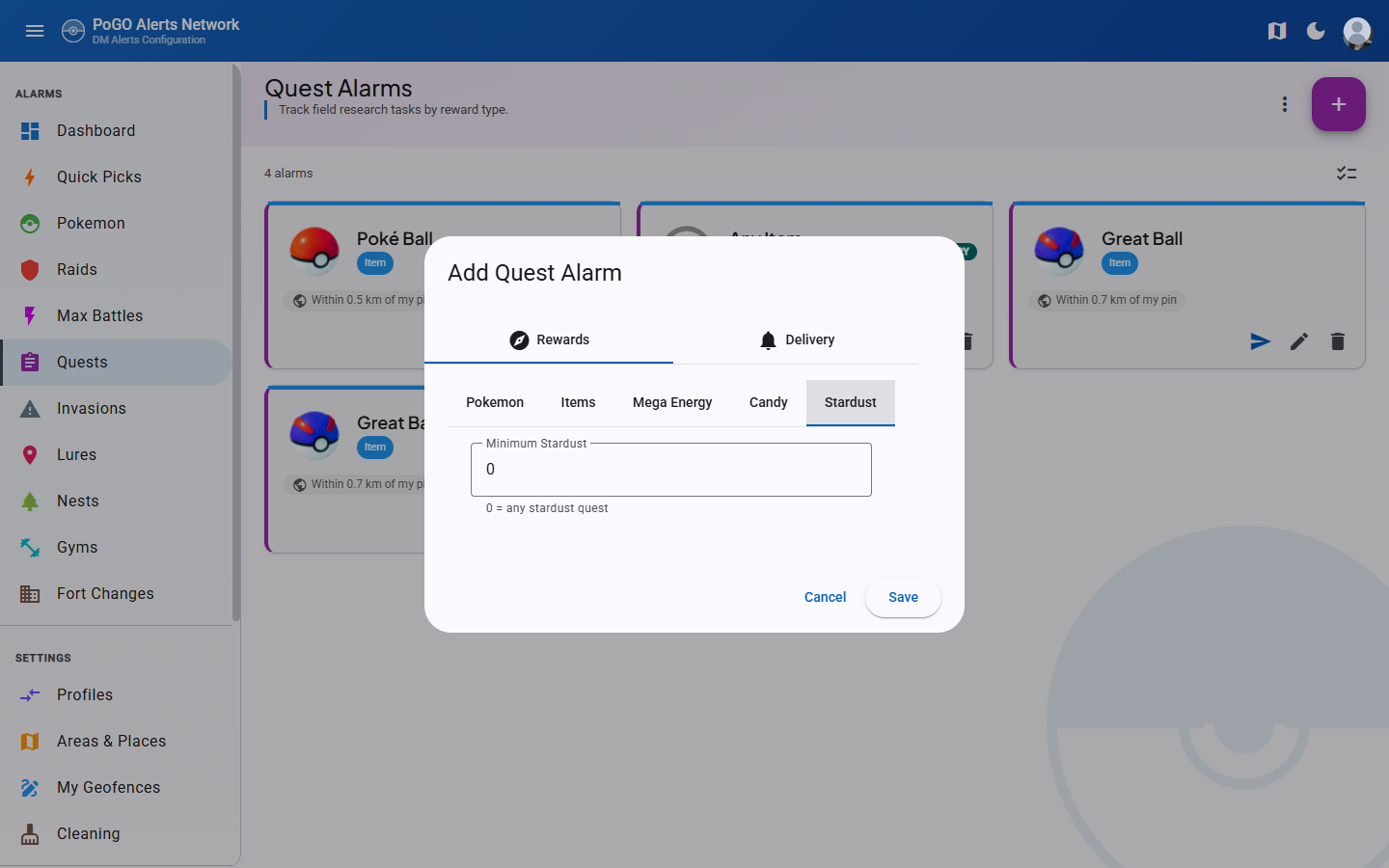
A quest alarm matches one reward. Which of the five reward tabs you use decides the reward_type PoracleNG stores, and where the number you type ends up:
| Tab | reward_type |
What you pick | Minimum field |
|---|---|---|---|
| Pokemon | 7 |
Species the quest rewards (reward = pokemon id) |
— |
| Items | 2 |
The item (reward = item id) |
amount |
| Mega Energy | 12 |
Species whose energy is rewarded | amount |
| Candy | 4 |
Species whose candy is rewarded | amount |
| Stardust | 3 |
Nothing; the amount is the whole rule | reward |
Minimum Amount is the fewest of the reward the quest has to give; 0 means any. It only applies where a reward comes in a quantity: items, candy and mega energy. A Pokemon encounter has nothing to count.
Stardust is the exception worth knowing about. PoracleNG reads the stardust floor from reward rather than amount, so the Stardust tab has a single Minimum Stardust field that writes there, and amount stays 0 on a stardust alarm.
Quest cards render the amount ahead of the reward name — "3× Rare Candy" — but only when it is above one; an amount of 1 shows the reward name on its own. Stardust cards read "25000 Stardust", from reward.
Gym alarm filters
Gym alarms support:
| Field | Default | Description |
|---|---|---|
team |
4 (any team) |
Gym team to track |
battleChanges |
false |
Notify on battle activity changes at the gym |
gymId |
null (all gyms) |
Track a specific gym by ID (set via gym picker) |
Fort change alarm filters
Fort change alarms track changes to pokestops and gyms as points of interest (not activity at them). This includes name changes, location changes, image updates, description changes, removals, and new POI additions.
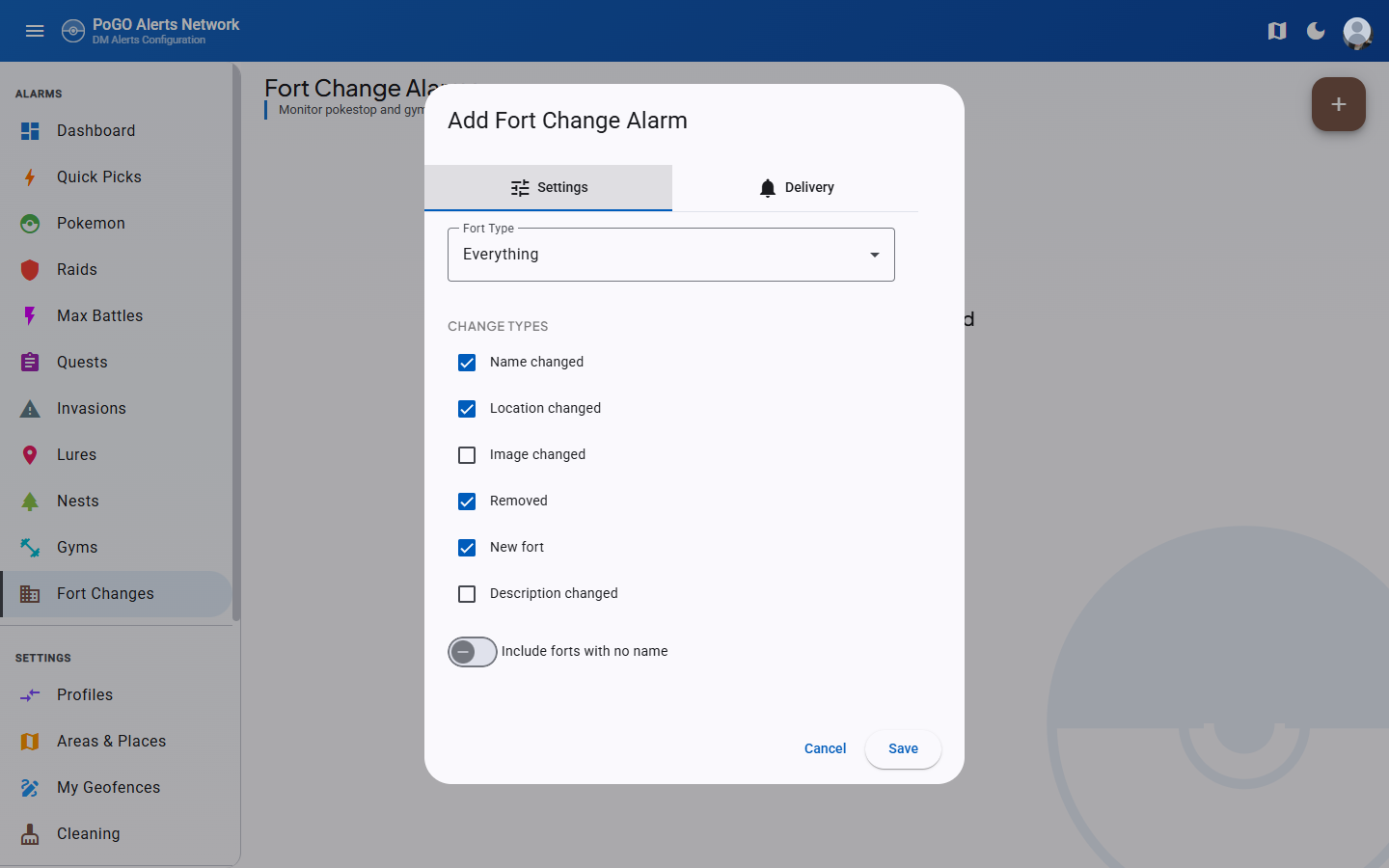
| Field | Default | Description |
|---|---|---|
fort_type |
"everything" |
Fort type to track: pokestop, gym, or everything |
include_empty |
0 (false) |
Include forts with no name |
change_types |
[] (all) |
JSON array of change types to monitor: name, location, image_url, description, removal, new |
Fort change alarms are proxied through PoracleNG using tracking type "fort". The API endpoints follow the standard alarm CRUD pattern at /api/fort-changes.
Max Battle alarm filters
Max Battle (Dynamax) alarms track battles at Power Spot stations. There are two tracking modes:
- By Level — Select battle tiers to track any Pokemon at those levels. One alarm per level.
- By Pokemon — Select specific Pokemon to track across all Max Battle levels.
| Field | Default | Description |
|---|---|---|
pokemon_id |
9000 (any) |
Pokemon to track. 9000 = level-based tracking (any Pokemon). |
level |
9000 (any) |
Battle level. Only meaningful when pokemon_id = 9000. |
gmax |
0 (any) |
Gigantamax filter. 0 = matches all battles, 1 = Gigantamax only. |
form |
0 (any) |
Pokemon form filter. |
Battle levels
Max Battle levels follow the PoracleNG util.json definitions:
| Level | Label | Type |
|---|---|---|
| 1 | 1 Star Max Battle | Dynamax |
| 2 | 2 Star Max Battle | Dynamax |
| 3 | 3 Star Max Battle | Dynamax |
| 4 | 4 Star Max Battle | Dynamax |
| 5 | Legendary Max Battle | Dynamax |
| 7 | Gigantamax Battle | Gigantamax |
| 8 | Legendary Gigantamax Battle | Gigantamax |
No level 6
There is no level 6 in PoracleNG's max battle system. Levels 7 and 8 are Gigantamax battles where gmax is automatically derived (level > 6 = gmax).
Insert-only API behavior
Unlike other alarm types, the PoracleNG maxbattle API handler has no diff/dedup logic — every POST creates new rows. Updates use a delete-then-create pattern: delete the old alarm by UID, then insert the replacement. This is handled transparently by MaxBattleService.UpdateAsync().
Scanner-based Pokemon filter
When the scanner database is configured, the "By Pokemon" tab queries the station table for distinct battle_pokemon_id values. This limits the Pokemon selector to species that have actually appeared in Max Battles. If the scanner DB is not configured, all Pokemon are shown.
GymCreate.Team default
GymCreate.Team must default to 4 (any team), matching Raid and Egg defaults. A C# int defaults to 0, which maps to "Neutral only" in Poracle, causing new gym alarms to silently filter out all non-Neutral gyms.
Gym picker
The gym picker is a shared component (app-gym-picker) that allows users to optionally target a specific gym when creating or editing Gym, Raid, or Egg alarms. When a gym is selected, alerts only fire for events at that particular gym.
How it works
- The picker displays a search field labeled "Search for a gym (optional)".
- As the user types (minimum 2 characters), the component debounces input (300ms) and queries the scanner database via
GET /api/scanner/gyms?search=<term>&limit=20. - Results appear in an autocomplete dropdown. Each option shows:
- Gym photo thumbnail (from the scanner DB), or a team icon fallback if no photo is available
- Gym name (or gym ID if the name is not set)
- Area name — resolved by checking which Koji geofence polygon contains the gym's coordinates (via point-in-polygon), or lat/lon coordinates if no area matches
- Selecting a gym sets the
gymIdon the alarm. A compact chip displays the selected gym's photo, name, and area with a clear button to remove the selection. - In edit mode, the picker loads the existing gym's details from
GET /api/scanner/gyms/{id}to display the name and photo.
Requirements
- The scanner database must be configured (
ConnectionStrings:ScannerDb). If not configured, theIScannerServiceis not registered and the search endpoints return empty results. - The Koji service is optional. When available, it enriches results with area names by checking gym coordinates against Koji geofence polygons.
Backend
ScannerControllerexposesGET /api/scanner/gyms(search) andGET /api/scanner/gyms/{id}(lookup by ID).IScannerService.SearchGymsAsync()queries the scanner DB's gym table by name (LIKE match), returningGymSearchResultwithId,Name,Url,Lat,Lon,TeamId, andArea.- Area enrichment runs server-side: for each gym result, the controller iterates Koji admin geofences and assigns the first matching fence name.
Invasion alarm filters
Invasion alarms filter by grunt type. The grunt_type value is automatically lowercased on create because Poracle uses case-sensitive matching for grunt types.
Delivery & message modes
Every alarm carries a clean field that PoracleNG reads as a bitmask controlling how the notification is delivered. PoracleWeb surfaces the bits the bot actually acts on as per-alarm toggles in the add/edit dialogs (and shows them as status badges on the alarm cards):
Mode (clean bit) |
Applies to | What it does |
|---|---|---|
| Auto-delete (bit 1) | all alarm types except Fort Changes | Deletes the Discord notification after the event expires (e.g. a Pokemon despawns or a raid ends). Toggle per-alarm in the dialog, or in bulk from the Cleaning page. PoracleNG has no clean column for fort changes, so the setting does not exist for that type. |
| Edit message in place (bit 2) | Lures; Raids/Eggs (via RSVP mode) | Updates the existing Discord message when the event changes instead of sending a new one. For lures, enable the "Edit message in place" toggle in the lure dialog; for raids/eggs it is set automatically when you choose an RSVP mode (see the rsvpChanges rows above). |
| Daily summary (bit 4) | Quests | Collects matching quests into a single summary message instead of one notification each. Enable the "Daily summary" toggle in the quest dialog. Requires a configured summary schedule on the bot. |
The modes combine (a quest can be both auto-delete and daily-summary, for example). PoracleWeb preserves any bits set elsewhere — if you configured a delivery mode via the bot's !command interface that isn't surfaced in the web UI, editing the alarm in the browser will not wipe it.
RSVP updates (raids & eggs)
Raid and egg alarms add a third delivery setting on top of auto-delete and edit-in-place: an RSVP notification mode, stored in the rsvpChanges field (see the rsvpChanges rows under the raid and egg filter tables above). Choose it from the three-option toggle group in the raid/egg add/edit dialog:
- Matches only (
0, the default) — standard raid/egg alerts only. You get one notification when a raid or egg matches, and nothing further. - Matches + RSVP updates (
1) — the same initial match alert, plus a re-notification whenever the RSVP count changes (trainers signing up to attend). - RSVP updates only (
2) — skips the initial match alert entirely and notifies you only when RSVP counts change.
Picking mode 1 or 2 also turns on PoracleNG's edit-in-place behavior (clean bit 2), so RSVP count changes edit the existing Discord alert in place rather than sending a fresh message each time — your DMs stay to a single, updating notification per raid. When a non-default mode is set, the alarm card shows an "RSVP" (mode 1) or "RSVP only" (mode 2) status pill beside the auto-delete tag.
Scanner caveat: RSVP updates only arrive if the upstream scanner emits RSVP webhooks. In a deployment without one, mode
2("RSVP updates only") suppresses the initial match but never receives RSVP events — the alarm goes completely silent. Use mode2only if you know your scanner reports RSVPs.
Default values
All monster (Pokemon) alarm defaults:
| Field | Default | Description |
|---|---|---|
min_iv |
0 |
Minimum IV percentage |
max_iv |
100 |
Maximum IV percentage |
min_cp |
0 |
Minimum CP |
max_cp |
9000 |
Maximum CP |
min_level |
0 |
Minimum level |
max_level |
55 |
Maximum level |
min_weight |
0 |
Minimum weight |
max_weight |
9000000 |
Maximum weight |
atk |
0 |
Minimum attack IV |
def |
0 |
Minimum defense IV |
sta |
0 |
Minimum stamina IV |
max_atk |
15 |
Maximum attack IV |
max_def |
15 |
Maximum defense IV |
max_sta |
15 |
Maximum stamina IV |
pvp_ranking_best |
0 |
Best PVP ranking position |
pvp_ranking_worst |
4096 |
Worst PVP ranking position |
pvp_ranking_evolution |
0 |
PVP form to rank against (0 = base, 1 = mega, 2 = Mega X, 3 = Mega Y) |
min_time |
0 |
Minimum seconds of despawn time left (0 = no filter) |
gender |
0 |
Gender filter (0 = any) |
size |
-1 |
Size filter (-1 = no filter / all sizes) |
max_size |
5 |
Maximum size upper bound |
Raid-specific defaults:
| Field | Default |
|---|---|
team |
4 (any team) |
move |
9000 (any move) |
evolution |
9000 (any evolution) |
Egg-specific defaults:
| Field | Default |
|---|---|
team |
4 (any team) |
Gym-specific defaults:
| Field | Default |
|---|---|
team |
4 (any team) |
Max Battle-specific defaults:
| Field | Default |
|---|---|
pokemon_id |
9000 (any Pokemon / level-based) |
level |
9000 (any level) |
gmax |
0 (any — not Gigantamax-only) |
move |
9000 (any move) |
evolution |
9000 (any — unused placeholder) |
Test Alerts
Every alarm card includes a test button (send/paper plane icon) that triggers a sample notification for that alarm. This lets users verify their alarm filters and notification formatting without waiting for a real event to occur.
How it works
- Click the send icon in the alarm card's action area
- PoracleWeb.NET builds a mock webhook payload using the alarm's actual filter values (e.g., pokemon_id, raid_level, quest_reward) and the user's saved location as the event coordinates
- The payload is sent to PoracleNG's
POST /api/testendpoint, which formats and delivers the notification to the user via their configured webhook - A snackbar displays the result: success, error, or cooldown warning
Supported alarm types
Test alerts are available for eight of the ten alarm types:
- Pokemon
- Raid
- Egg
- Quest
- Invasion
- Lure
- Nest
- Gym
Not Fort Change or Max Battle — TestAlertController rejects them, and neither module renders a test
button. Those two have no mock payload builder, so there is nothing to send.
Rate limiting
Test alerts are rate limited to prevent abuse:
- Server-side: 5 requests per 60 seconds per IP address
- Client-side: 15-second cooldown per individual alarm (tracked by UID)
- In-flight request deduplication prevents duplicate API calls if the button is clicked rapidly
Weather Display
The dashboard shows the current in-game weather conditions at the user's pin.
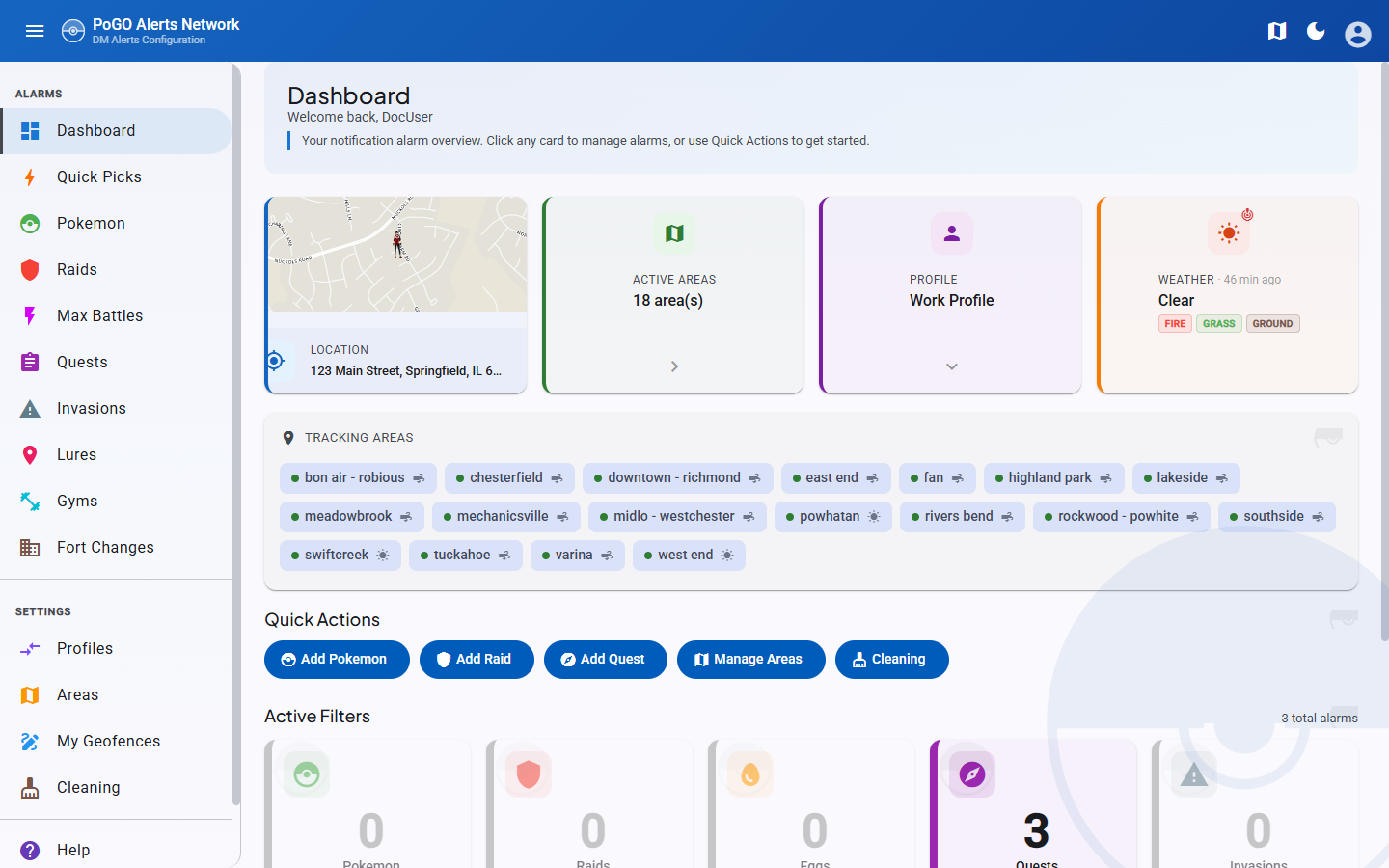
Features
- Current weather — Displays the active in-game weather type at the user's pin
- Last update timestamp — Shows when the weather data was last refreshed
- Area weather — Weather conditions displayed for each of the user's selected areas
- Automatic updates — Weather data refreshes in the background
Pin required
The weather display requires a saved pin to function. Users who have not set one will not see weather information on the dashboard. Set a pin on the Areas & Places page or through the onboarding wizard.
Quick Picks
Admins can define Quick Pick templates — pre-configured alarm sets that users can apply with one click. Useful for onboarding new users or sharing recommended configurations.
When applying a Quick Pick, the apply dialog's Delivery tab holds the same scope picker the add dialogs use, seeded from your Alert Defaults. Whatever you choose there — areas, a saved place, a radius, or a specific set of areas — applies to every alarm the pick creates.